

How to Use This Handbook
This is a reference, not a tutorial - organized by task (finding your way around, selecting a range, editing, formatting, writing formulas) rather than a single undifferentiated alphabetical list. Skim the category you need, or read straight through once to find the handful that will actually change how you work day to day.
Every shortcut here is shown for Windows, the primary audience for this
book. On Mac, swap Ctrl for Cmd unless a shortcut specifically notes
otherwise - most Excel shortcuts follow that swap exactly, and this book
only calls out the real exceptions inline (a small number of key
combinations are reserved by macOS itself, like Spotlight or window
switching, so Excel keeps Ctrl there instead of remapping to Cmd).
Navigation
Getting around a large sheet without touching the mouse or scroll wheel:
- Ctrl + Arrow (Up/Down/Left/Right) - jump to the edge of the current block of data in that direction. If the active cell is already at the edge of a block, it jumps to the edge of the next one instead.
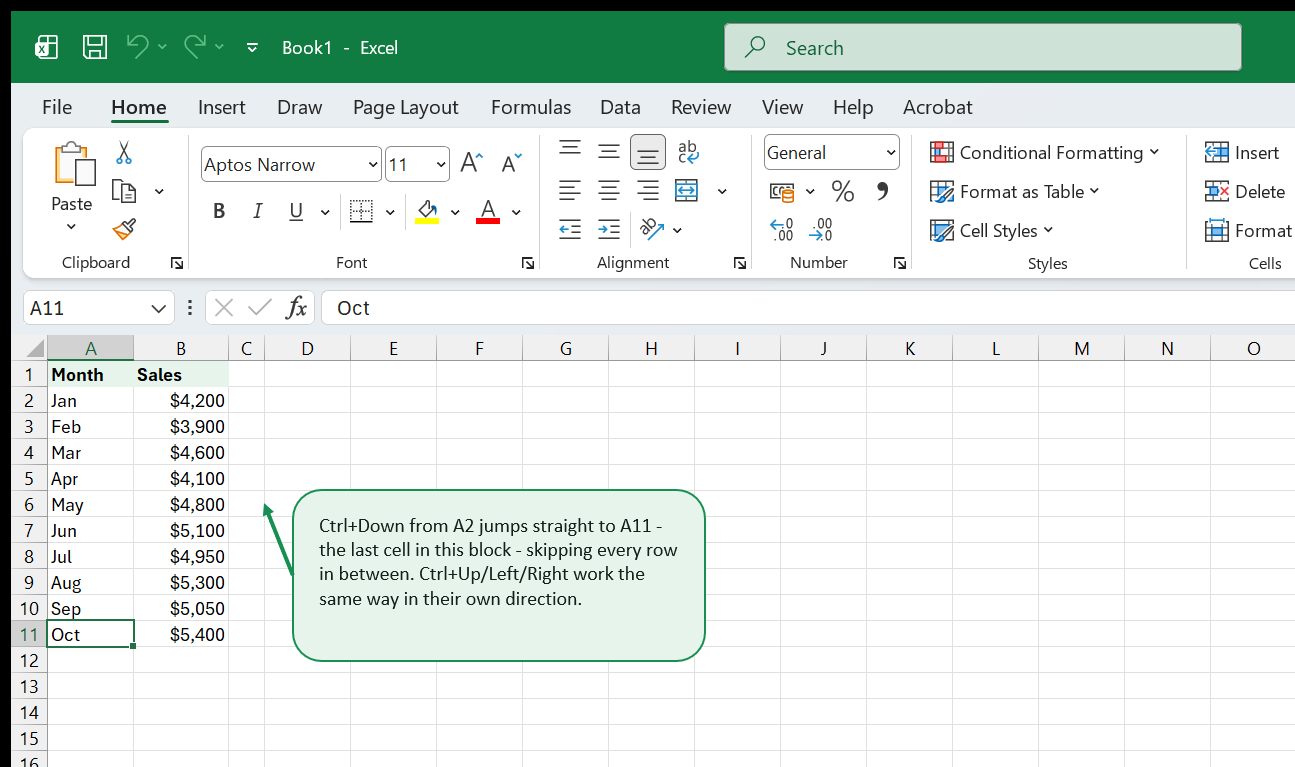
- Ctrl + Home - jump to cell A1.
- Ctrl + End - jump to the last cell that has ever held data or formatting on the sheet (not necessarily the last cell with visible data; see the Common Pitfalls note in the Formatting chapter).
- Ctrl + Page Down / Ctrl + Page Up - switch to the next / previous worksheet tab. Mac: Option + Right Arrow / Option + Left Arrow.
- Ctrl + G (or F5) - open Go To, then type any cell or named range reference to jump straight there.
- Ctrl + F / Ctrl + H - Find / Find & Replace.
- Alt + Page Down / Alt + Page Up - move one screen to the right / left.
- Ctrl + Backspace - scroll the window to bring the active cell back into view, wherever you’ve scrolled off to.
Selection
Extending a selection follows the same logic as navigation - add Shift:
- Ctrl + Shift + Arrow - extend the selection to the edge of the current data block. Pairs directly with Ctrl + Arrow above: the same keys, held with Shift, select instead of just moving.
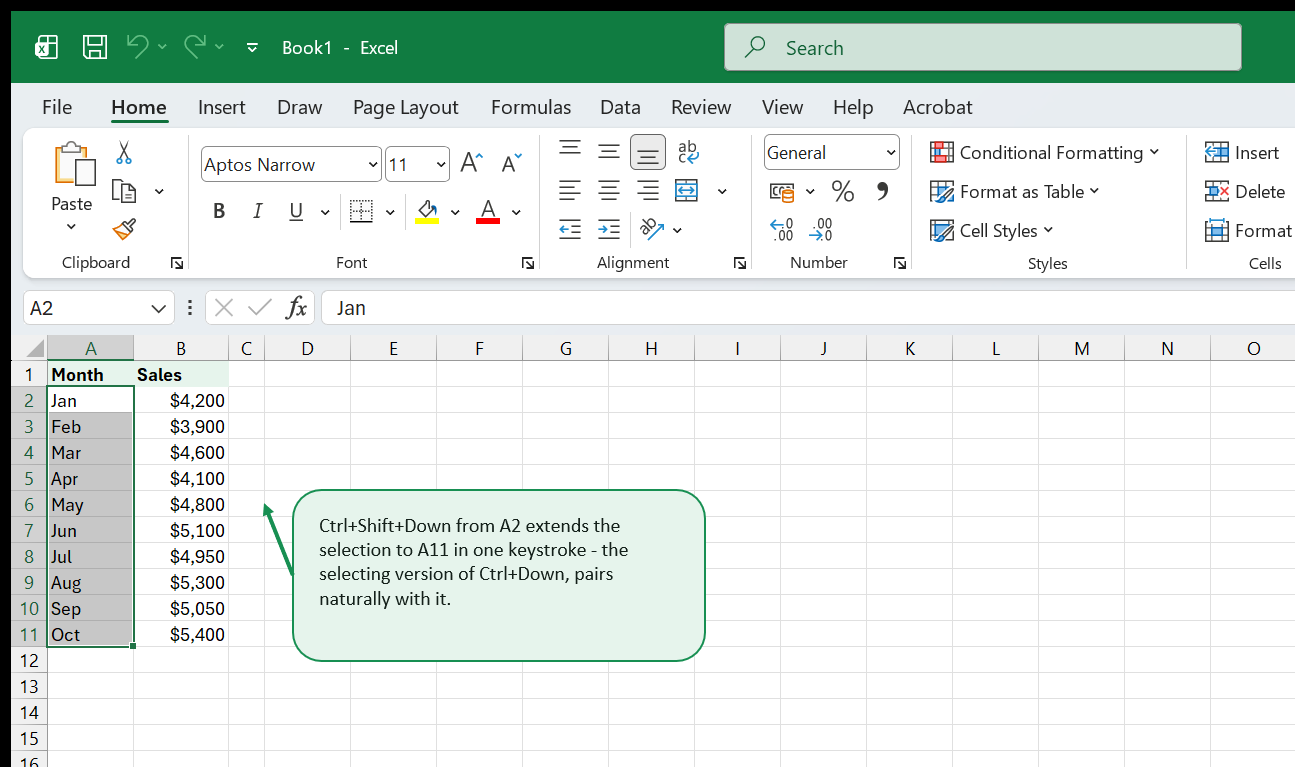
- Ctrl + A - select the current data region on the first press, the entire worksheet on the second press.
- Ctrl + Space - select the entire column of the active cell. Same
key on Mac -
Cmd + Spaceis reserved for Spotlight system-wide, so Excel keeps this one asCtrl + Spaceon both platforms. - Shift + Space - select the entire row of the active cell.
- Ctrl + Shift + End - extend the selection to the last used cell on the sheet.
- Ctrl + Shift + Home - extend the selection back to A1.
- Ctrl + Click - add a non-adjacent cell or range to the current selection.
Editing
- F2 - edit the active cell in place instead of retyping it from scratch.
- Ctrl + D - fill down: copies the topmost cell in the selection into every cell below it. The fastest way to repeat a formula or value down a column.
- Ctrl + R - fill right, the same idea across a row instead of down a column.
- Delete - clears a cell’s contents only, leaving formatting intact.
- Ctrl + Z / Ctrl + Y - undo / redo.
- Ctrl + ; (semicolon) - insert today’s date as a static value - it
will not change tomorrow, unlike the live
TODAY()function. - Ctrl + Shift + ; - insert the current time as a static value, same idea.
- Ctrl + “+” / Ctrl + “-” - insert / delete the selected cells, rows, or columns.
- Ctrl + C / Ctrl + X / Ctrl + V - copy / cut / paste.
- Ctrl + Alt + V - open Paste Special (paste values only, formulas only, formats only, and more). Mac: Cmd + Ctrl + V.
- F4 (outside of formula editing) - repeats the last action, such as the last formatting command you applied, on a new selection. This is a different behavior from F4’s role inside a formula - see the Formulas chapter below.
- Ctrl + T - convert the selected range into a real Excel Table, with filter arrows, banded rows, and a range that grows automatically as rows are added.
Formatting
- Ctrl + 1 - open Format Cells - the single most useful formatting shortcut, covering number formats, borders, alignment, and fonts in one dialog.
- Ctrl + B / Ctrl + I / Ctrl + U - bold / italic / underline.
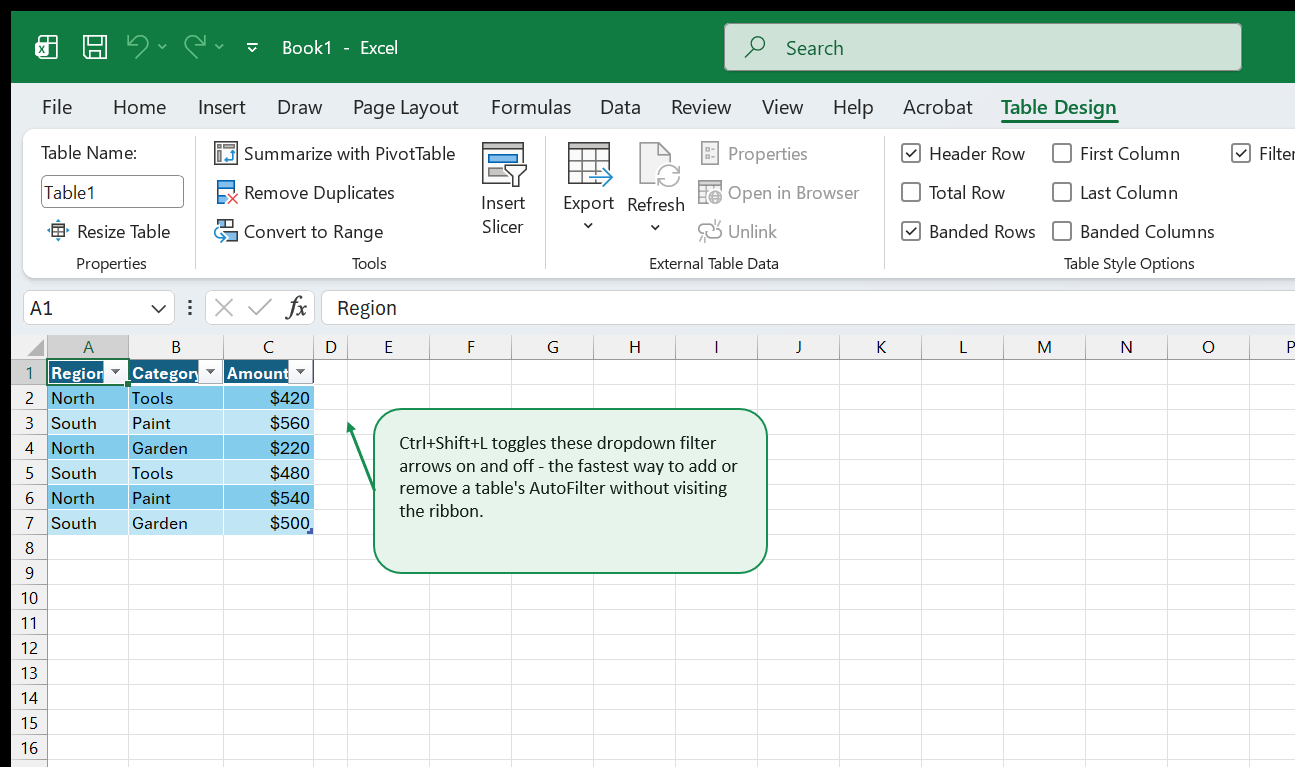
- Ctrl + Shift + L - toggle a table’s AutoFilter dropdown arrows on and off, without opening the ribbon.
A full family of number-format shortcuts shares the same pattern - Ctrl + Shift + a symbol on the top number row:
| Shortcut | Applies |
|---|---|
Ctrl + Shift + ~ |
General format (removes special number formatting) |
Ctrl + Shift + ! |
Number format: two decimals, thousands separator |
Ctrl + Shift + @ |
Time format (h:mm AM/PM) |
Ctrl + Shift + # |
Date format (d-mmm-yy) |
Ctrl + Shift + $ |
Currency format (two decimals) |
Ctrl + Shift + % |
Percentage format (no decimals) |
Ctrl + Shift + ^ |
Scientific notation (two decimals) |
Because Ctrl+End (Navigation, above) jumps to the last cell that has ever held data or formatting - not just visible data - a common trap is a worksheet that seems to end at row 40 but Ctrl+End jumps to row 4,000, because formatting was once applied further down and never cleared. Select the excess rows/columns and Edit → Clear → Clear All to reset it if this happens to you.
Formulas
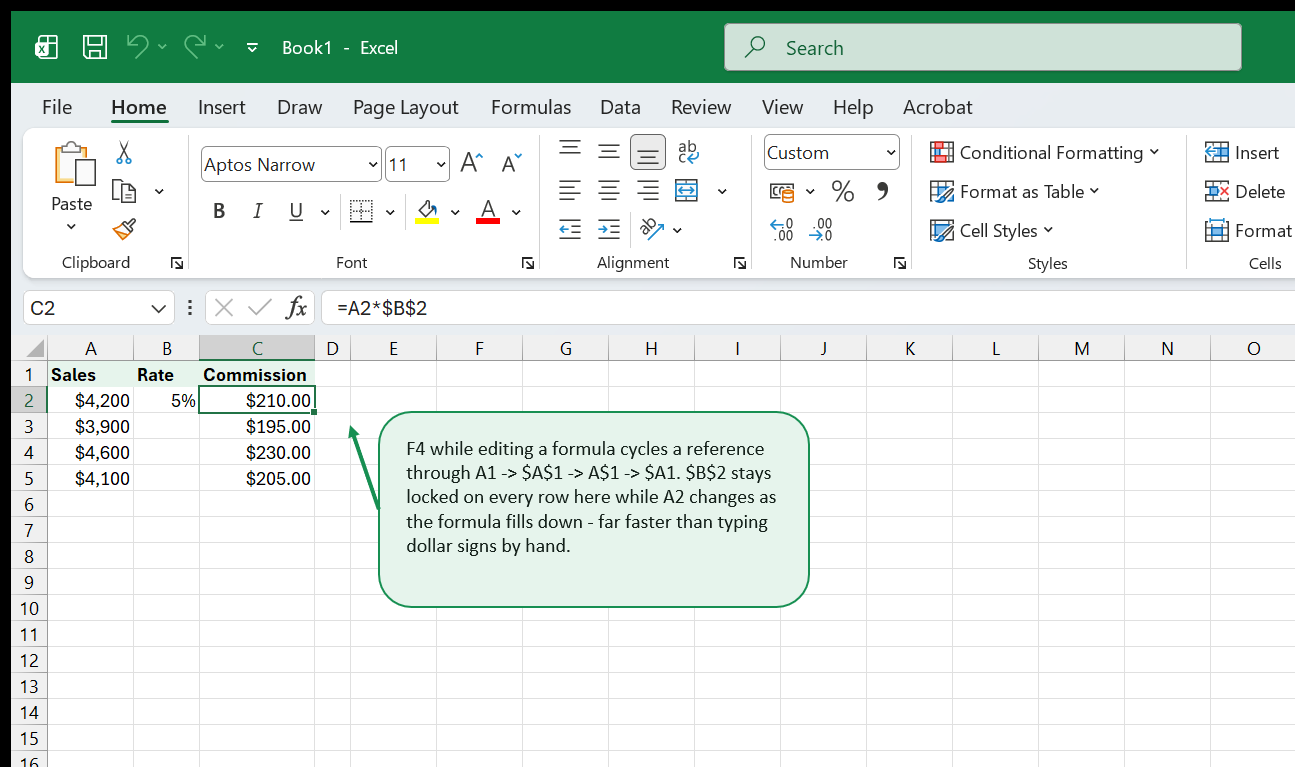
- F4 (while actively editing a formula, cursor in or next to a cell
reference) - cycles that reference through relative, absolute, and mixed:
A1→$A$1→A$1→$A1→ back toA1. Far faster than typing dollar signs by hand, and the reason a well-placed$in a copied formula almost always traces back to someone using F4 rather than typing it.
Ctrl+`(grave accent, the key above Tab) - toggle between showing formula results and the formulas themselves on the whole sheet. Useful for auditing a workbook someone else built. Same key on Mac -Cmd+`is reserved by macOS for switching between a running app’s own windows, so Excel keeps this one asCtrl+`on both platforms.- Ctrl + Shift + Enter - the legacy way to confirm an array formula.
Modern dynamic-array functions (
UNIQUE,FILTER,SORT, and others) spill automatically and don’t need it, but older workbooks still use it. - Alt + = - AutoSum: guesses the range above or to the left of the
active cell and inserts a
SUMformula. Mac: Shift + Cmd + T. - F9 - recalculate every open workbook. Shift + F9 - recalculate only the active worksheet. Rarely needed with automatic calculation on, but a real fix when a workbook is set to manual calculation and numbers look stale.
- Ctrl + [ - select every cell directly referenced by the formula in the active cell (the same relationships the Formula Auditing “Trace Precedents” ribbon button draws as arrows, without leaving the keyboard).
Workbook & File
A handful more, less about the sheet itself and more about the file it lives in:
- Ctrl + N - open a new, blank workbook.
- Ctrl + O - open an existing workbook.
- Ctrl + S - save the current workbook.
- F12 - open the Save As dialog directly. Mac: Shift + Cmd + S.
- Ctrl + P - open the Print dialog / Print Preview.
- Ctrl + W - close the active workbook (Excel itself stays open if other workbooks are still open).
- Alt + F4 - close Excel entirely, including every open workbook. Mac: Cmd + Q.
- Ctrl + F6 (or Ctrl + Tab) - switch between two or more open workbook windows without touching the mouse.
Shortcuts That Save the Most Time
If you only take five shortcuts away from this entire book, make them these - between them they cover most of the tedious re-entering, re-referencing, and re-clicking that eats up time in a spreadsheet:
- Ctrl + D - fill a formula or value down a column without copy-pasting.
- F4 (in a formula) - lock a reference with
$signs without typing them. - Ctrl + T - a real Excel Table: filter arrows, banded rows, and a range that grows on its own.
- Ctrl + Shift + L - the fastest way to add or remove filter arrows on a table you already built.
- Ctrl + Arrow / Ctrl + Shift + Arrow - stop scrolling through hundreds of rows by hand; jump (or select) straight to the edge of the data instead.
Where to Go Next
- 20 Excel keyboard shortcuts that actually save time is a shorter companion read covering some of the same ground from a different angle.
- Browse the Shortcuts & Productivity topic for more articles on working faster in Excel.
- Shortcuts get far more useful once a range is a real Table - see Pivot Tables from Zero if summarizing that data is the next step, or the Excel Tables vs. named ranges article if you want the structural reasoning behind Ctrl+T specifically.
- New to Excel entirely? Excel for Beginners covers the screen, the ribbon, and your first formulas from scratch.
- Need the exact syntax for a function instead of a keystroke? The Excel Formulas Cheat Sheet condenses every function category on this site into one reference, the same format as this book.
That's the whole book. Keep the PDF for offline reading.
Download PDF


