=TOPIC4 subtopics in this path
Named Ranges & Formula Auditing
Named ranges, Name Manager, formula tracing, error checking, Watch Window, Evaluate Formula, and spreadsheet audit habits.
=SUBTOPICSWhat to learn inside Named Ranges & Formula Auditing
Each item pairs the learning structure with curated public YouTube resources where available, so learners can move from outline to video practice quickly.
01Intermediate
Named ranges and Name Manager
Create readable names for key cells, ranges, constants, and model inputs.
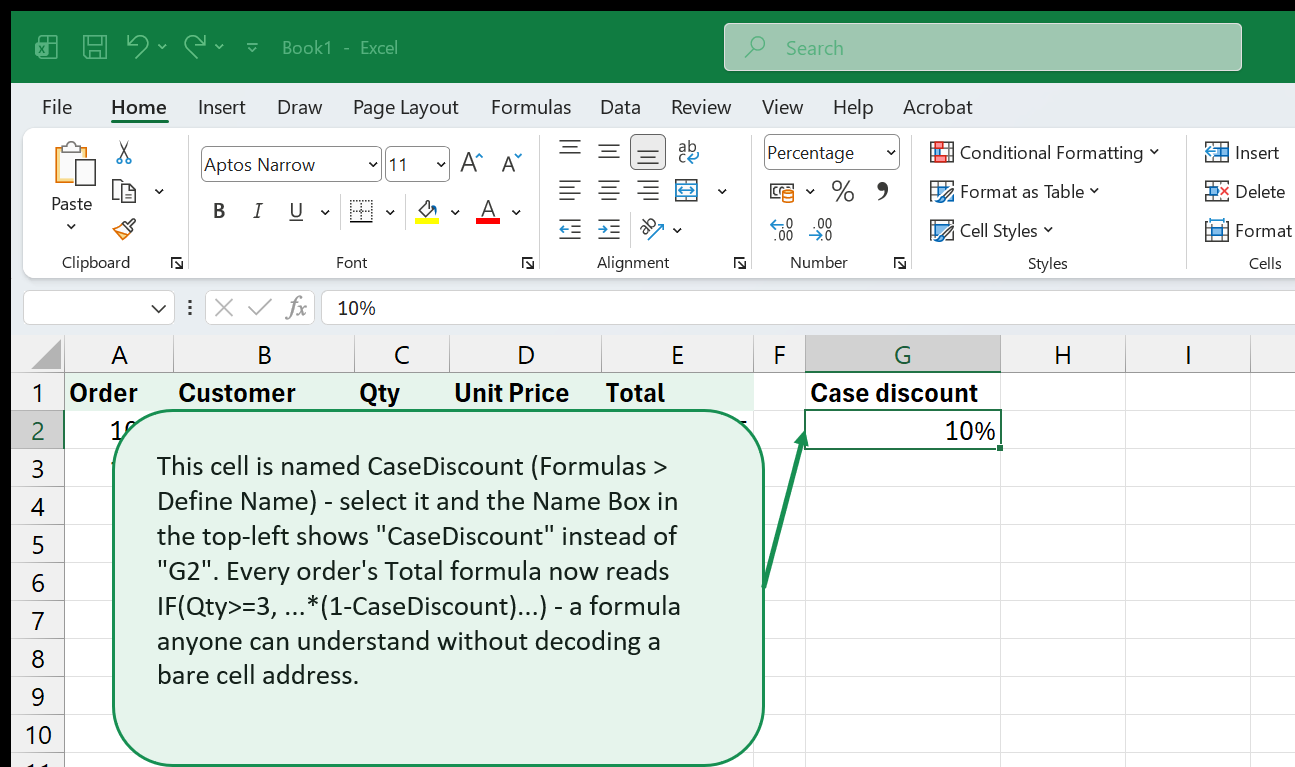
QUICK NOTES- Formulas > Name Manager is where every named range, constant, and table name in the workbook lives -- check it before assuming a name is unused.
- Scope a name to a single sheet when it's only meant for that sheet's formulas, to avoid same-name collisions across tabs.
- Name model inputs (e.g. TaxRate) so formulas read like =Revenue*TaxRate instead of =B2*$D$4.
02Intermediate
Trace precedents and dependents
See which cells feed a formula and which outputs rely on it.
QUICK NOTES- Formulas > Trace Precedents draws arrows to every cell feeding the selected formula; Trace Dependents shows the reverse.
- Use this before deleting or moving a cell -- Excel won't always warn you if something still depends on it.
- Ctrl+[ jumps straight to a formula's precedents without needing the arrows drawn first.
03Advanced
Evaluate Formula and error checking
Step through complex formulas and diagnose common calculation errors.
QUICK NOTES- Formulas > Evaluate Formula steps through a nested formula one calculation at a time, showing exactly where a wrong value appears.
- Formulas > Error Checking flags common mistakes (inconsistent formulas in a range, text-as-number) the way spell-check flags typos.
- Select part of a formula in the formula bar and press F9 to preview just that piece's result -- undo with Ctrl+Z afterward so it doesn't get hardcoded.
04Advanced
Workbook audit checklist
Review links, formulas, hidden sheets, hardcoded values, and control totals before sharing.
QUICK NOTES- Press Ctrl+` (Show Formulas) to scan a whole sheet for hardcoded numbers hiding inside formulas.
- Search for external references (look for [ ] or file paths in formulas) before sharing -- a broken link shows #REF! for anyone without access to the source file.
- Confirm hidden sheets and rows don't contain live inputs someone could miss before signing off on the model.
=PREVIEWExcel in action: Named Ranges & Formula Auditing
Real Excel screenshots showing what this topic looks like in practice.
Sources we reference — not partners
26 places we cite for accuracy. We link to them; none has reviewed, endorsed, or collaborated on this site.