

This is a lookup table, not a tutorial: 130 functions, one condensed row
each, grouped by category. Scan for the name, copy the syntax, click through
to /functions/[id] on excelback.com for the full explanation,
more worked examples, and a screenshot where one exists. Every syntax string
and one-line description here is pulled directly from that same function
library - nothing here is a rewritten or simplified version of what the site
already says, because the original was already correct.
How to Read This Cheat Sheet
Every table follows the same three columns: the function name (linked to
its full page), its exact syntax, and a one-line summary of what it does.
Arguments in [square brackets] are optional - Excel fills in a sensible
default if you leave them out. ... means the argument repeats (more
ranges, more conditions, and so on).
A few functions are marked in their own description as requiring a specific
Excel version - mostly the newer dynamic-array functions (FILTER,
UNIQUE, SORT, XLOOKUP, SEQUENCE, and others), which need Excel 365
or Excel 2021 or later. Everything else works in any modern Excel version.
Lookup & Reference (22 functions)
Need more than the syntax? XLOOKUP & VLOOKUP Field Guide is a full companion covering every practical lookup pattern - exact match, approximate match, multi-criteria, two-way lookups, wildcards, and graceful error handling - in depth.
| Function | Syntax | What it does |
|---|---|---|
| ADDRESS | ADDRESS(row_num, column_num, [abs_num], [a1], [sheet_text]) |
Builds a cell reference as text from a row and column number. |
| AREAS | AREAS(reference) |
Returns the number of separate ranges (areas) contained in a reference. |
| CHOOSE | CHOOSE(index_num, value1, [value2], ...) |
Returns a value from a list based on an index number. |
| COLUMN | COLUMN([reference]) |
Returns the column number of a reference, or the current column when used without one. |
| DROP | DROP(array, rows, [columns]) |
Removes a specified number of rows or columns from the start or end of an array. |
| FILTER | FILTER(array, include, [if_empty]) |
Filters a range to the rows (or columns) that meet one or more conditions — requires Excel 365 or Excel 2021. |
| HLOOKUP | HLOOKUP(lookup_value, table_array, row_index_num, [range_lookup]) |
Like VLOOKUP, but searches the top row of a range and returns a value from a row you specify below it. |
| HSTACK | HSTACK(array1, [array2], ...) |
Combines two or more ranges or arrays side by side into a single array. |
| INDEX | INDEX(array, row_num, [column_num]) |
Returns the value at a given row and column position within a range. |
| INDIRECT | INDIRECT(ref_text, [a1]) |
Converts a text string into a cell or range reference, evaluated at the time the formula runs. |
| MATCH | MATCH(lookup_value, lookup_array, [match_type]) |
Returns the relative position of a value within a range, rather than the value itself. |
| OFFSET | OFFSET(reference, rows, cols, [height], [width]) |
Returns a reference offset from a starting cell by a given number of rows and columns, with optional height and width. |
| ROW | ROW([reference]) |
Returns the row number of a reference, or the current row when used without one. |
| SEQUENCE | SEQUENCE(rows, [columns], [start], [step]) |
Generates a list of sequential numbers as a spilled array — no dragging or manual typing required. |
| SORT | SORT(array, [sort_index], [sort_order], [by_col]) |
Sorts the contents of a range or array — requires Excel 365 or Excel 2021. |
| TAKE | TAKE(array, rows, [columns]) |
Returns a specified number of rows or columns from the start or end of an array. |
| TRANSPOSE | TRANSPOSE(array) |
Rotates a range so that rows become columns and columns become rows. |
| UNIQUE | UNIQUE(array, [by_col], [exactly_once]) |
Returns the unique values from a range or array — requires Excel 365 or Excel 2021. |
| VLOOKUP | VLOOKUP(lookup_value, table_array, col_index_num, [range_lookup]) |
Looks up a value in the first column of a range and returns a value from another column in the same row. |
| VSTACK | VSTACK(array1, [array2], ...) |
Stacks multiple ranges or arrays vertically into a single array. |
| XLOOKUP | XLOOKUP(lookup_value, lookup_array, return_array, [if_not_found], [match_mode], [search_mode]) |
The modern replacement for VLOOKUP — searches any direction, defaults to an exact match, and returns a custom value when nothing is found. |
| XMATCH | XMATCH(lookup_value, lookup_array, [match_mode], [search_mode]) |
Returns the relative position of a value within a range or array, with more flexible matching than MATCH. |
Logical (9 functions)
IF handles two outcomes, IFS handles several without nesting, and
SWITCH is the cleanest choice when you’re testing one value against a
list of exact matches rather than a list of conditions.
| Function | Syntax | What it does |
|---|---|---|
| AND | AND(logical1, [logical2], ...) |
Returns TRUE only if every argument is true. |
| IF | IF(logical_test, value_if_true, [value_if_false]) |
Returns one value if a condition is true and another if it’s false. |
| IFERROR | IFERROR(value, value_if_error) |
Returns a fallback value if a formula evaluates to an error, otherwise returns the formula’s normal result. |
| IFS | IFS(logical_test1, value1, [logical_test2, value2], ...) |
Checks multiple conditions in order and returns the value for the first one that’s true — no nesting required. |
| LAMBDA | LAMBDA([parameter1, parameter2, ...,] calculation) |
Defines a custom, reusable function using Excel’s own formula language — no VBA required. |
| LET | LET(name1, value1, [name2, value2, ...], calculation) |
Names intermediate calculations inside a formula so they can be reused and read like variables. |
| NOT | NOT(logical) |
Reverses TRUE to FALSE and FALSE to TRUE. |
| OR | OR(logical1, [logical2], ...) |
Returns TRUE if any argument is true. |
| SWITCH | SWITCH(expression, value1, result1, [value2, result2, ...], [default]) |
Tests an expression against a list of values and returns the result for the first match. |
Math & Trig (22 functions)
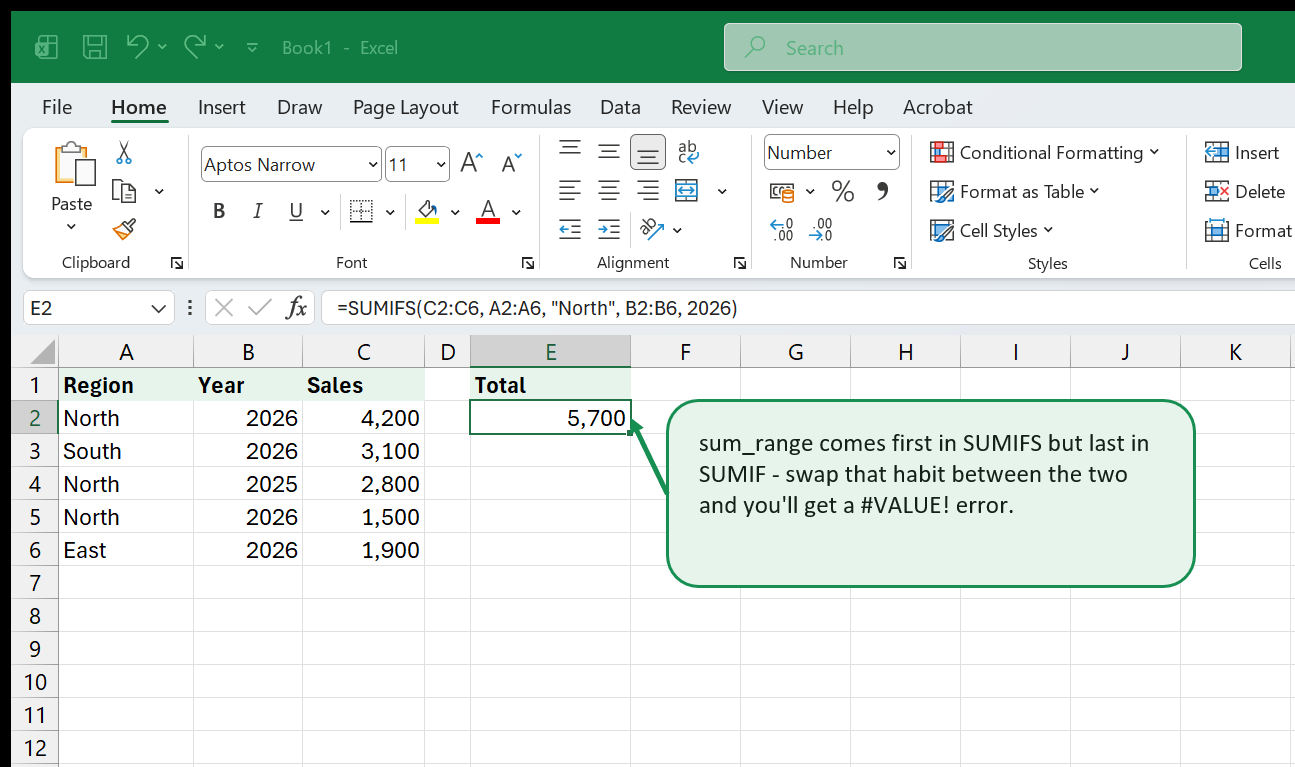
SUMIF/SUMIFS and SUMPRODUCT overlap for conditional totals - reach for
SUMIFS first for straightforward column-matches-a-value criteria, and
SUMPRODUCT when the condition itself needs to be an array expression.
| Function | Syntax | What it does |
|---|---|---|
| ABS | ABS(number) |
Returns the absolute value of a number — the number without its sign. |
| CEILING | CEILING(number, significance) |
Rounds a number up to the nearest multiple of a specified significance. |
| FLOOR | FLOOR(number, significance) |
Rounds a number down to the nearest multiple of a specified significance. |
| GCD | GCD(number1, [number2], ...) |
Returns the greatest common divisor of two or more integers. |
| INT | INT(number) |
Rounds a number down to the nearest integer. |
| LCM | LCM(number1, [number2], ...) |
Returns the least common multiple of two or more integers. |
| MOD | MOD(number, divisor) |
Returns the remainder after a number is divided by a divisor. |
| POWER | POWER(number, power) |
Raises a number to a specified power. |
| PRODUCT | PRODUCT(number1, [number2], ...) |
Multiplies all of its arguments together. |
| QUOTIENT | QUOTIENT(numerator, denominator) |
Returns the integer portion of a division, discarding the remainder. |
| RAND | RAND() |
Returns a random decimal number between 0 and 1. |
| RANDBETWEEN | RANDBETWEEN(bottom, top) |
Returns a random whole number between two values you specify. |
| ROMAN | ROMAN(number, [form]) |
Converts an Arabic numeral into Roman numeral text. |
| ROUND | ROUND(number, num_digits) |
Rounds a number to a specified number of decimal places. |
| ROUNDUP | ROUNDUP(number, num_digits) |
Rounds a number away from zero, regardless of the digit that follows. |
| SQRT | SQRT(number) |
Returns the positive square root of a number. |
| SUM | SUM(number1, [number2], ...) |
Adds up a range of numbers or a list of values. |
| SUMIF | SUMIF(range, criteria, [sum_range]) |
Sums the cells in a range that meet a single condition. |
| SUMIFS | SUMIFS(sum_range, criteria_range1, criteria1, [criteria_range2, criteria2], ...) |
Sums cells that meet multiple conditions at once. |
| SUMPRODUCT | SUMPRODUCT(array1, [array2], [array3], ...) |
Multiplies corresponding items across arrays and adds up the results — a flexible way to do conditional sums without helper columns. |
| SUMSQ | SUMSQ(number1, [number2], ...) |
Adds the squares of a set of numbers. |
| TRUNC | TRUNC(number, [num_digits]) |
Removes the fractional part of a number, without rounding. |
Statistical (17 functions)
COUNTIF/COUNTIFS count matching rows; SUMIF/SUMIFS (in Math & Trig,
above) total them. The two families share the same argument order pattern,
which makes it easy to switch between counting and summing the same
condition.
| Function | Syntax | What it does |
|---|---|---|
| AVERAGE | AVERAGE(number1, [number2], ...) |
Calculates the arithmetic mean of a set of numbers. |
| AVERAGEIF | AVERAGEIF(range, criteria, [average_range]) |
Averages the cells in a range that meet a single condition. |
| COUNT | COUNT(value1, [value2], ...) |
Counts how many cells or arguments contain numbers. |
| COUNTA | COUNTA(value1, [value2], ...) |
Counts the number of non-empty cells in a range. |
| COUNTBLANK | COUNTBLANK(range) |
Counts the number of empty cells in a range. |
| COUNTIF | COUNTIF(range, criteria) |
Counts the cells in a range that meet a single condition. |
| COUNTIFS | COUNTIFS(criteria_range1, criteria1, [criteria_range2, criteria2], ...) |
Counts cells that meet multiple conditions at once. |
| LARGE | LARGE(array, k) |
Returns the k-th largest value in a dataset. |
| MAX | MAX(number1, [number2], ...) |
Returns the largest value in a set of values or a range. |
| MEDIAN | MEDIAN(number1, [number2], ...) |
Returns the middle value of a set of numbers. |
| MIN | MIN(number1, [number2], ...) |
Returns the smallest value in a set of values or a range. |
| MODE.SNGL | MODE.SNGL(number1, [number2], ...) |
Returns the most frequently occurring number in a data set. |
| PERCENTILE.INC | PERCENTILE.INC(array, k) |
Returns the value at a given percentile within a data set, including the 0th and 100th percentiles. |
| RANK.EQ | RANK.EQ(number, ref, [order]) |
Returns the rank of a number within a list — tied values receive the same rank. |
| SMALL | SMALL(array, k) |
Returns the k-th smallest value in a dataset. |
| STDEV.S | STDEV.S(number1, [number2], ...) |
Estimates standard deviation based on a sample. |
| VAR.S | VAR.S(number1, [number2], ...) |
Estimates variance based on a sample. |
Text (27 functions)
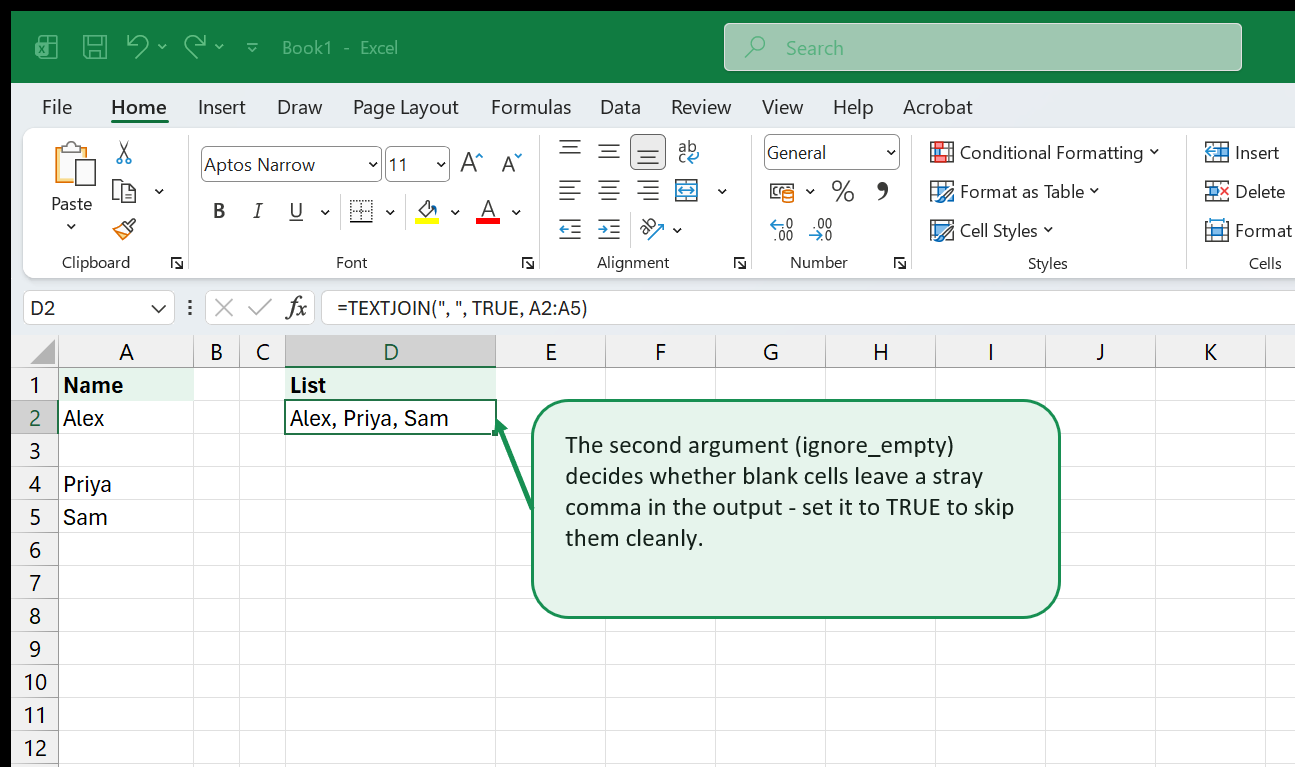
For joining text, prefer TEXTJOIN over the older CONCAT/CONCATENATE -
it’s the only one of the three with a delimiter argument and a way to skip
blank cells automatically. Download the
text functions practice dataset
to try these against real messy contact data.
| Function | Syntax | What it does |
|---|---|---|
| CHAR | CHAR(number) |
Returns the character that corresponds to a given character code. |
| CLEAN | CLEAN(text) |
Strips the 32 non-printable control characters that often arrive with imported or pasted text. |
| CODE | CODE(text) |
Returns the numeric character code for the first character of a text string. |
| CONCAT | CONCAT(text1, [text2], ...) |
Joins text from multiple cells or strings together, with no delimiter. |
| CONCATENATE | CONCATENATE(text1, [text2], ...) |
Joins two or more text strings into a single string, with no separator added automatically. |
| DOLLAR | DOLLAR(number, [decimals]) |
Rounds a number and converts it to text formatted as currency. |
| EXACT | EXACT(text1, text2) |
Compares two text strings and returns TRUE only when they match exactly, including letter case. |
| FIND | FIND(find_text, within_text, [start_num]) |
Returns the position of one text string within another — case-sensitive. |
| FIXED | FIXED(number, [decimals], [no_commas]) |
Rounds a number to a specified number of decimals and returns it as text, with commas by default. |
| LEFT | LEFT(text, [num_chars]) |
Returns a specified number of characters from the start of a text string. |
| LEN | LEN(text) |
Returns the number of characters in a text string, including spaces. |
| LOWER | LOWER(text) |
Converts all letters in a text string to lowercase. |
| MID | MID(text, start_num, num_chars) |
Returns characters from the middle of a text string, starting at a position you specify. |
| NUMBERVALUE | NUMBERVALUE(text, [decimal_separator], [group_separator]) |
Converts text to a number using explicit decimal and group separators, regardless of regional settings. |
| PROPER | PROPER(text) |
Converts text to title case — the first letter of each word is capitalised, the rest are lowercase. |
| REPT | REPT(text, number_times) |
Repeats a text string a specified number of times, useful for in-cell bars and separators. |
| RIGHT | RIGHT(text, [num_chars]) |
Returns a specified number of characters from the end of a text string. |
| SEARCH | SEARCH(find_text, within_text, [start_num]) |
Finds the position of one text string inside another, ignoring case, with wildcard support. |
| SUBSTITUTE | SUBSTITUTE(text, old_text, new_text, [instance_num]) |
Replaces all or specific occurrences of a substring with a new string. |
| T | T(value) |
Returns its argument unchanged if it is text, or an empty string if it is not. |
| TEXT | TEXT(value, format_text) |
Formats a number as text using a number format code. |
| TEXTJOIN | TEXTJOIN(delimiter, ignore_empty, text1, [text2], ...) |
Joins text with a delimiter between each item, and can skip blank cells. |
| TRIM | TRIM(text) |
Removes all leading, trailing, and extra internal spaces from a text string. |
| UNICHAR | UNICHAR(number) |
Returns the character that corresponds to a given Unicode code point number. |
| UNICODE | UNICODE(text) |
Returns the Unicode code point number for the first character of a text string. |
| UPPER | UPPER(text) |
Converts all letters in a text string to uppercase. |
| VALUE | VALUE(text) |
Converts a text string that represents a number into a numeric value. |
Date & Time (23 functions)
Remember that Excel stores every date as a serial number counting days from
a fixed start point - this is why date arithmetic (end_date - start_date)
works directly, and why NETWORKDAYS/WORKDAY exist specifically to skip
weekends, which plain subtraction can’t do.
| Function | Syntax | What it does |
|---|---|---|
| DATE | DATE(year, month, day) |
Builds a date from separate year, month, and day numbers. |
| DATEDIF | DATEDIF(start_date, end_date, unit) |
Calculates the difference between two dates expressed in complete years, months, or days. |
| DATEVALUE | DATEVALUE(date_text) |
Converts a date stored as text into a true Excel date serial number. |
| DAY | DAY(serial_number) |
Returns the day of the month from a date as a number between 1 and 31. |
| DAYS | DAYS(end_date, start_date) |
Returns the number of days between two dates. |
| EDATE | EDATE(start_date, months) |
Returns the date a specified number of months before or after a start date. |
| EOMONTH | EOMONTH(start_date, months) |
Returns the last day of the month a specified number of months before or after a start date. |
| HOUR | HOUR(serial_number) |
Extracts the hour (0-23) from a time or date/time value. |
| ISOWEEKNUM | ISOWEEKNUM(date) |
Returns the ISO 8601 week number of the year for a given date. |
| MINUTE | MINUTE(serial_number) |
Extracts the minute (0-59) from a time or date/time value. |
| MONTH | MONTH(serial_number) |
Returns the month from a date as a number between 1 and 12. |
| NETWORKDAYS | NETWORKDAYS(start_date, end_date, [holidays]) |
Returns the number of working days between two dates, excluding weekends and optional holidays. |
| NETWORKDAYS.INTL | NETWORKDAYS.INTL(start_date, end_date, [weekend], [holidays]) |
Counts whole working days between two dates using a customizable weekend schedule. |
| NOW | NOW() |
Returns the current date and time as a date serial number. |
| SECOND | SECOND(serial_number) |
Extracts the second (0-59) from a time or date/time value. |
| TIME | TIME(hour, minute, second) |
Combines separate hour, minute, and second numbers into a single time value. |
| TODAY | TODAY() |
Returns the current date, updated automatically whenever the sheet recalculates. |
| WEEKDAY | WEEKDAY(serial_number, [return_type]) |
Returns which day of the week a date falls on, as a number. |
| WEEKNUM | WEEKNUM(serial_number, [return_type]) |
Returns the week number of the year for a given date. |
| WORKDAY | WORKDAY(start_date, days, [holidays]) |
Returns the date a given number of working days before or after a start date, skipping weekends and optional holidays. |
| WORKDAY.INTL | WORKDAY.INTL(start_date, days, [weekend], [holidays]) |
Returns the date a given number of working days before or after a start date, using a customizable weekend schedule. |
| YEAR | YEAR(serial_number) |
Returns the year from a date as a four-digit number. |
| YEARFRAC | YEARFRAC(start_date, end_date, [basis]) |
Calculates the fraction of a year between two dates, using a chosen day-count basis. |
Financial (6 functions)
PMT, PV, and FV share the same argument order (rate, nper, ...) by
design - once one is familiar, the others follow the same shape. Try them
against the loan amortization starter workbook
rather than a blank sheet.
| Function | Syntax | What it does |
|---|---|---|
| FV | FV(rate, nper, pmt, [pv], [type]) |
Calculates the future value of an investment based on a constant interest rate and regular payments. |
| IRR | IRR(values, [guess]) |
Calculates the internal rate of return for a series of cash flows. |
| NPV | NPV(rate, value1, [value2], ...) |
Calculates the net present value of a series of future cash flows at a given discount rate. |
| PMT | PMT(rate, nper, pv, [fv], [type]) |
Calculates the fixed periodic payment for a loan or investment. |
| PV | PV(rate, nper, pmt, [fv], [type]) |
Calculates the present value of an investment: the lump sum today equivalent to a series of future payments. |
| RATE | RATE(nper, pmt, pv, [fv], [type], [guess]) |
Calculates the interest rate per period of a loan or annuity. |
Information (4 functions)
Small but frequently paired with IF to validate a cell’s contents before
doing anything else with it - IF(ISNUMBER(A2), ..., ...) is a common guard
before dividing or summing a column that might contain stray text.
| Function | Syntax | What it does |
|---|---|---|
| ISBLANK | ISBLANK(value) |
Returns TRUE if a cell is completely empty, FALSE otherwise. |
| ISNUMBER | ISNUMBER(value) |
Returns TRUE if a value is a number, FALSE otherwise. |
| ISTEXT | ISTEXT(value) |
Returns TRUE if a value is text, FALSE otherwise. |
| N | N(value) |
Converts a value to a number: numbers pass through, TRUE becomes 1, and everything else becomes 0. |
Where to Go Next
This cheat sheet is a snapshot of the full, searchable function reference - 130 entries and counting, each with more examples, related-function links, and a screenshot where one exists. If a function you needed isn’t here yet, it may have been added since this book was generated; the live page is always current.
- Doing a lot of lookups specifically? The XLOOKUP & VLOOKUP Field Guide goes deep on exact match, approximate match, multi-criteria, and two-way lookup patterns that don’t fit in a one-line table.
- New to formulas entirely? Excel for Beginners is the free starting point - operators, order of operations, relative vs. absolute references, and the first functions everyone should know.
- Browse the Formulas & Functions topic or the Formulas & Functions course path for structured, in-depth coverage instead of a flat reference.
- Free practice files for several of these categories: the text functions dataset, the SUMIFS / COUNTIFS practice dataset, and the loan amortization starter workbook.
- The Formula Builder and Formula Explainer tools help construct or decode any formula from this list without leaving the browser.
That's the whole book. Keep the PDF for offline reading.
Download PDF


