


COUNTIFS()
Counts cells that meet multiple conditions at once.
COUNTIFS(criteria_range1, criteria1, [criteria_range2, criteria2], ...)COUNTIFS extends COUNTIF to any number of conditions, all of which must be true for a row to be counted — the same AND logic as SUMIFS.
Every criteria_range must be the same size and shape, or COUNTIFS returns a #VALUE! error.
COUNTIFS is the natural partner to SUMIFS and shares its rules: every criteria range must be the same height, operators must be concatenated to their values, and criteria are case-insensitive. The most useful thing it does that is not obvious is counting a range of values on one column by supplying two criteria against it — a greater-or-equal and a less-than pair, which is how you count within a date window or a numeric band. The common mistake there is using <= on the upper bound of a date range, which includes anything timestamped at midnight on the next day.
Arguments
- criteria_range1
- The first range to test.
- criteria1
- The condition for criteria_range1.
- criteria_range2, criteria2, ...optional
- Additional range/condition pairs — all must match.
Examples
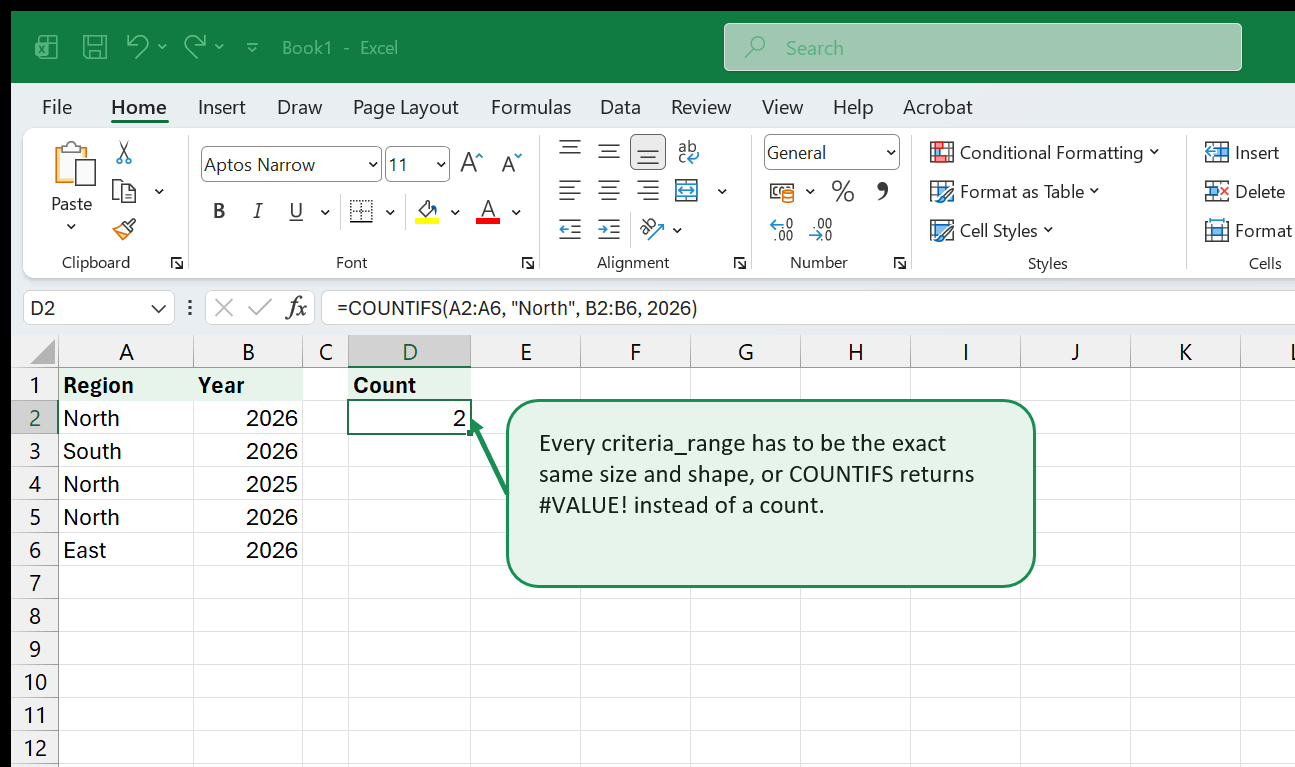
=COUNTIFS(A2:A200, "North", B2:B200, "2026")Counts rows where region is North AND year is 2026.
=COUNTIFS(C2:C200, "Open", D2:D200, "<"&TODAY()-30)Counts open items older than 30 days. TODAY() has to be concatenated to the operator, and the result refreshes every time the file is opened.
=COUNTIFS(A2:A200, F2, B2:B200, ">="&DATE(2026,1,1), B2:B200, "<"&DATE(2026,4,1))A date range takes two criteria on the same column. Every criteria range must be the same size as the others, or COUNTIFS returns #VALUE!.
Notes and gotchas
- Multiple criteria are combined with AND — every condition must hold for a row to count. There is no OR mode.
- Every criteria range must be the same size and shape, or the result is
#VALUE!. COUNTIFSis the usual partner toSUMIFSfor telling a genuine zero apart from "no matching rows", since SUMIFS returns 0 for both.- Date criteria need concatenation:
">="&DATE(2026,1,1). Writing a date literally inside quotes is read as text and matches nothing. - For a date range, pass two criteria on the same column —
">="&startand"<="&end. - Like COUNTIF, it cannot test a calculated condition such as
MONTH(date)=3. Add a period-key helper column.
Common errors
| You see | Because | Fix |
|---|---|---|
| #VALUE! | Criteria ranges of different sizes. | Use Table column references so every range is bounded identically. |
| Returns 0 on dates | A date criterion written as text rather than concatenated. | Use ">="&$B$1 with a real date in B1. |
COUNTIFS tricks, tips, and workbook hacks
COUNTIFS extends conditional counting across two or more columns (or two bounds on the same column), powering SLA compliance matrices, headcount-by-department-and-tenure tables, and multi-column duplicate checks. Every row must satisfy all criteria pairs to be counted.
Watch out for blank-cell criteria: passing an empty helper cell as a criterion causes COUNTIFS to return 0 unless you explicitly specify what should happen when a filter cell is cleared.
Quick COUNTIFS checks before trusting the result
- Test multi-column composite keys for duplicates with =COUNTIFS($A$2:$A$500, A2, $B$2:$B$500, B2)>1.
- Count items between two dates or numbers by listing the same range twice: Range, ">="&Low, Range, "<="&High.
- Keep all criteria ranges identical in row height and column width.
- To count rows where a date column is blank, pass "" as the criterion string.
| COUNTIFS pattern | COUNTIFS formula | Best use | Watch out |
|---|---|---|---|
| Composite-key duplicate check (e.g. Vendor + Invoice #) | =COUNTIFS($A$2:$A$1000,A2,$B$2:$B$1000,B2)>1 | Accounts payable audits where two different vendors might legitimately use invoice #1001, but the same vendor never should. | Both ranges must be locked with $ before copying down. |
| Count open tickets older than 7 days | =COUNTIFS(C2:C500,"Open",A2:A500,"<"&TODAY()-7) | Operations backlog scorecards tracking overdue items. | Blank cells in A2:A500 count as 0 (which is < TODAY()-7), so add A2:A500,">0" if blanks exist. |
| Multi-column ranking within a group | =COUNTIFS($A$2:$A$500,A2,$C$2:$C$500,">"&C2)+1 | Ranking each salesperson's revenue (C) strictly within their own region (A) — a conditional RANK() equivalent. | Ties receive the same rank number. |
| COUNTIFS mistake | What happens in COUNTIFS | Fix |
|---|---|---|
| Blank date cells counted by "<"&Date comparisons | Rows with no date in column A get counted as 'before 2026' because Excel treats empty cells as 0 in < comparisons. | Add an extra pair on the same date column: A2:A500, ">0". |
| Referencing an empty filter cell without a fallback | Leaving dashboard filter cell H1 blank causes =COUNTIFS(A2:A500, H1) to count only blank rows in column A. | Use IF(H1="", "*", H1) for text columns. |
COUNTIFS practice drills
- Build a within-department rank column using =COUNTIFS($B$2:$B$50, B2, $D$2:$D$50, ">"&D2)+1.
- Test how =COUNTIFS(A2:A20, "<"&TODAY()) behaves when 3 cells in A2:A20 are blank, then fix it by adding A2:A20, ">0".