
Once you master loading a CSV, stripping blank spaces, changing column types, and appending two tables from Power Query Quick Start, Power Query starts paying back hours of manual effort. Yet those entry-level transforms still leave the toughest everyday spreadsheet headaches untouched: monthly budget sheets shaped horizontally (Jan through Dec across columns), product prices trapped in separate lookup tabs, aging buckets computed via brittle nested IF chains, and queries that snap whenever a folder path shifts between teammates.
Volume 2 bridges the gap between simple query recording and dependable multi-table data pipelines. Over twelve chapters we build clean, refresh-proof patterns using real workbook tables, query joins, custom calendar dimensions, and workbook parameters — with complete worked screenshots showing exact before-and-after results directly inside Excel.
1. Reshaping Wide Budgets with Unpivot Other Columns
Goal: Turn wide human-friendly cross-tab budgets (Jan, Feb, Mar, …) into vertical, PivotTable-ready rows without breaking when new month columns arrive.
Humans read wide horizontal schedules easily (North in Row 3, Jan in Column B, Feb in Column C, Mar in Column D). PivotTables, Power Pivot models, and SUMIFS dashboards despise them. Whenever month names sit across columns instead of inside a single Month column, slicing by quarter or computing running YTD totals becomes painful.

Why “Unpivot Other Columns” Beats “Unpivot Columns”
In the Power Query Editor ribbon, beginners often select Jan, Feb, Mar and click Transform → Unpivot Columns. That embeds a hard-coded list of { "Jan", "Feb", "Mar" } inside the M step (Table.Unpivot). The next month, when Apr arrives in the source file, Apr sits orphaned beside Attribute and Value instead of stacking vertically!
Always select the stable identifier columns on the left (Region, Account, CostCenter) and choose Transform → Unpivot Other Columns. Power Query emits Table.UnpivotOtherColumns, which keeps anchor columns frozen and flips every remaining column — including brand-new Apr, May, or Dec columns added months later — cleanly into Month and Sales pairs.
Three Pre-Unpivot Guardrails
- Remove any
Totalcolumn first: Otherwise"Total"gets unpivoted right alongside"Jan","Feb","Mar"and doubles your final sum! - Promote headers cleanly before unpivoting: Verify
Use First Row as Headersran prior toUnpivotOtherColumnssoAttributereceives genuine month names instead of"Column2". - Rename & retype immediately: Double-click
Attribute→MonthandValue→Salesright in the unpivot step formula bar or in the immediate next step, and apply Decimal/Currency data typing.
2. Relational Lookups with Merge Queries (Replacing VLOOKUP)
Goal: Join transaction logs with master catalog and customer tables inside Power Query before loading to Excel, eliminating heavy worksheet lookup arrays.
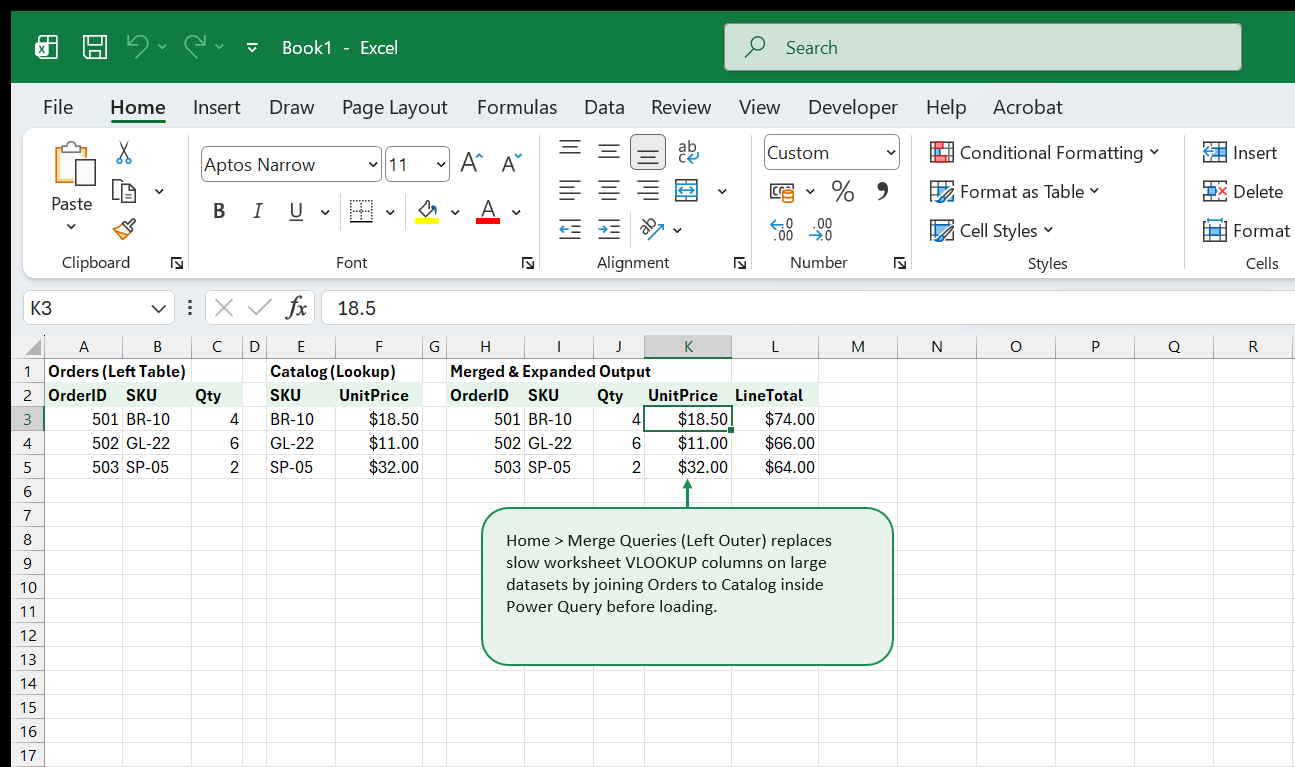
Writing 50,000 VLOOKUP or XLOOKUP formulas next to an imported order ledger recalculates slowly and creates column clutter. Power Query’s Merge Queries executes the exact relational join upstream inside the M engine and materializes crisp combined columns ready for instant analysis.
Picking the Right Join Kind Every Time
Inside Home → Merge Queries (or Merge Queries as New), choose your matching key column (SKU in both tables) and review the six Join Kind options:
| Join Kind | Rows Kept | Primary Real-World Use |
|---|---|---|
| Left Outer (default) | All Orders + matching Catalog attributes | Standard VLOOKUP/XLOOKUP enrichment |
| Inner | Only rows present in both tables | Filtering Orders strictly to active approved SKUs |
| Left Anti | Rows in Orders with no match in Catalog | Instant exception audit spotting unmapped or typo SKUs |
| Right Outer / Anti | Catalog SKUs never sold | Inventory dead-stock audit finding zero-sale items |
| Full Outer | Everything from both sides | Two-system reconciliation across month-end exports |
Expanding Only What You Need
After clicking OK, Power Query adds a structured [Table] column on the right. Click the two-arrow expand icon in its header, uncheck “Use original column name as prefix”, check only UnitPrice (and Cost, omitting duplicate SKU), and confirm. Beware one classic surprise: if your Catalog lookup table accidentally contains two rows for the same SKU, a Left Outer merge duplicates your order rows silently! Always run Remove Duplicates on the lookup table’s key column first.
3. Case-Insensitive Keys, Fuzzy Matching & Join Hygiene
Goal: Prevent silent unmatched rows caused by trailing spaces, mixed "br-10" vs "BR-10" casing, or messy vendor names.
Unlike Excel worksheet XLOOKUP and VLOOKUP — which treat "BR-10" and "br-10" as identical matches — Power Query’s M engine is strictly case-sensitive by default! A lowercase "br-10" in your sales export fails to match uppercase "BR-10" in your SKU catalog unless you normalize keys first.
Three-Step Join Hygiene Before Every Merge
- Select join key columns in both queries and apply Transform → Format → Trim (
Text.Trim) + UPPERCASE (or Clean to drop invisible line-break characters). - Confirm identical data types (
Texton both sides — neverTextonSKUleft vsWhole Numberon right!). Mixed types match zero rows cleanly. - For free-text vendor matching (
"Acme Supply Inc"vs"ACME Supply, LLC"), test Use fuzzy matching to perform the merge cautiously with a separate transformation table and a strictSimilarity threshold(0.85+), verifying exceptions via a Left Anti check.
4. Conditional Columns & Custom Business Logic
Goal: Categorize invoice aging tiers, commission bands, and SKU flags inside Power Query without fragile 7-layer nested IF spreadsheet formulas.
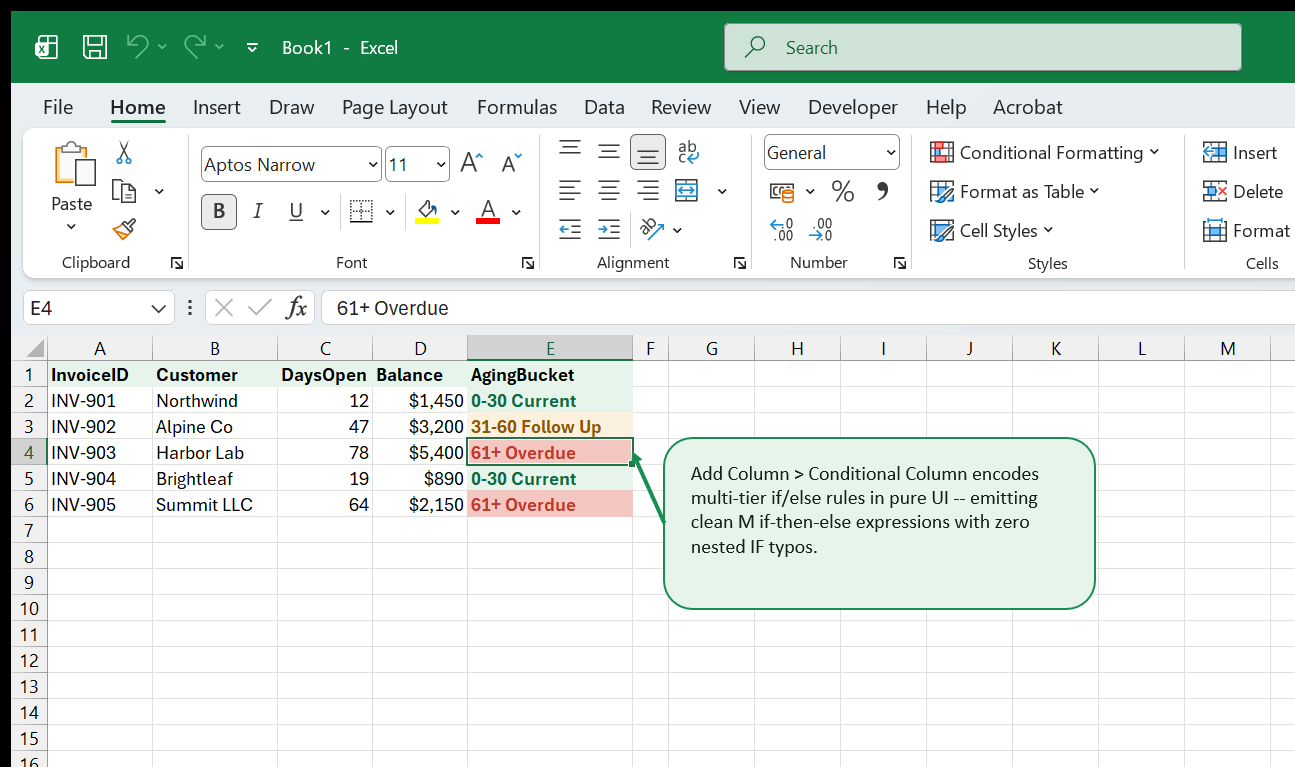
Business classification logic belongs once inside the ingestion pipeline, not copied across twenty worksheet tabs where someone edits row 18 by accident. Clicking Add Column → Conditional Column gives you a crisp visual rule builder:
Rule Evaluation Order Matters
Power Query evaluates if ... then ... else if ... rules top to bottom and stops on the very first match (short-circuit). Checking DaysOpen <= 30 first routes 12 and 19 safely into "0-30 Current"; checking DaysOpen <= 60 second captures 31 through 60; everything else falls cleanly to Otherwise → "61+ Overdue".
Stepping Up to Custom Columns in M
Need compound AND / OR logic (DaysOpen > 60 and Balance >= 2000)? Open Add Column → Custom Column and write lowercase M keywords (if, then, else, and, or) — remembering M requires exact lowercase:
if [DaysOpen] > 60 and [Balance] >= 2000 then "Escalate" else "Standard"5. Pre-Aggregating Big Imports with Group By
Goal: Collapse hundreds of thousands of granular log rows into lightning-fast customer, SKU, or daily summaries before touching the worksheet grid.
Excel’s sheet grid slows down once hundreds of thousands of raw transaction rows carry formulas alongside them. Even if a PivotTable needs only Customer Totals and Order Counts, loading half a million granular rows consumes memory every save. Transform → Group By solves that inside Power Query.

Advanced Group By Tricks (All Rows + Rank)
Switching the Group By dialog from Basic to Advanced lets you group by multiple keys (Customer + Month) AND compute multiple outputs simultaneously (TotalSpend = Sum of Amount, Orders = Count Rows, AvgTicket = Average of Amount). Pro trick: adding one aggregation named Detail with operation All Rows nests each customer’s sub-table right inside the grouped table so you can apply Table.Max (find the single latest order date per customer!) cleanly without losing order details.
6. Building a Programmatic DimDate Calendar Table in M
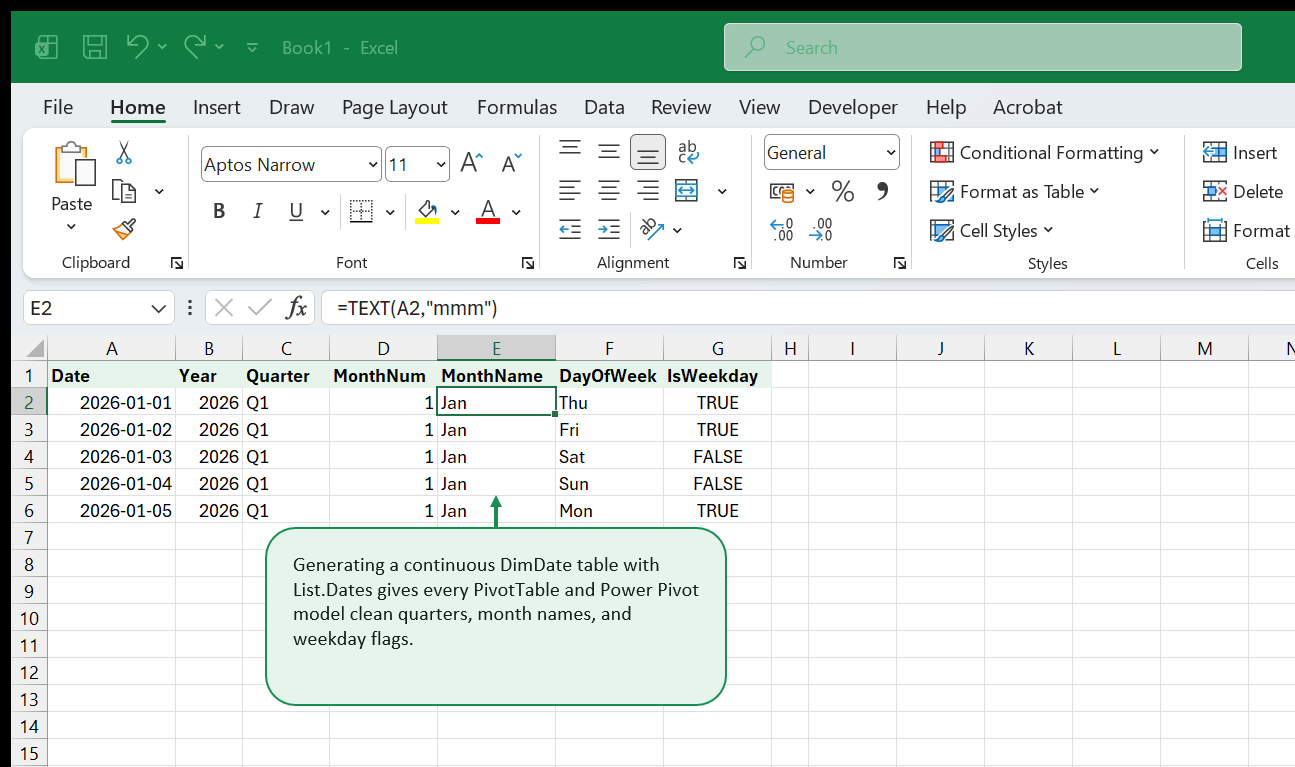
Goal: Generate an unbroken, refresh-proof calendar lookup table (Year, Quarter, MonthName, IsWeekday) directly inside Power Query.
Relying strictly on transaction dates inside PivotTables leaves missing calendar days out of time series and breaks year-over-year comparisons whenever weekends or holidays skip orders. Building a dedicated continuous Calendar Dimension (DimDate) once in Power Query gives every workbook reliable fiscal quarters, weekday flags, and chronological month sorting.
Step-by-Step Continuous Calendar Formula
Start via Data → Get Data → From Other Sources → Blank Query, open the Formula Bar (or Advanced Editor), and generate a date sequence between startDate (#date(2025, 1, 1)) and endDate (#date(2027, 12, 31)):
- Compute day span cleanly:
Duration.Days(EndDate - StartDate) + 1. - Call
List.Dates(StartDate, DayCount, #duration(1, 0, 0, 0))to materialize a continuous list of every single calendar day. - Click Transform → To Table, set the column data type to Date, rename to
Date, and use Add Column → Date UI menus to attachYear,Quarter of Year,Month,Name of Month, andDay of Week. Zero hand-typed formulas needed on the worksheet!
7. Workbook Parameters for Portable Paths & Thresholds
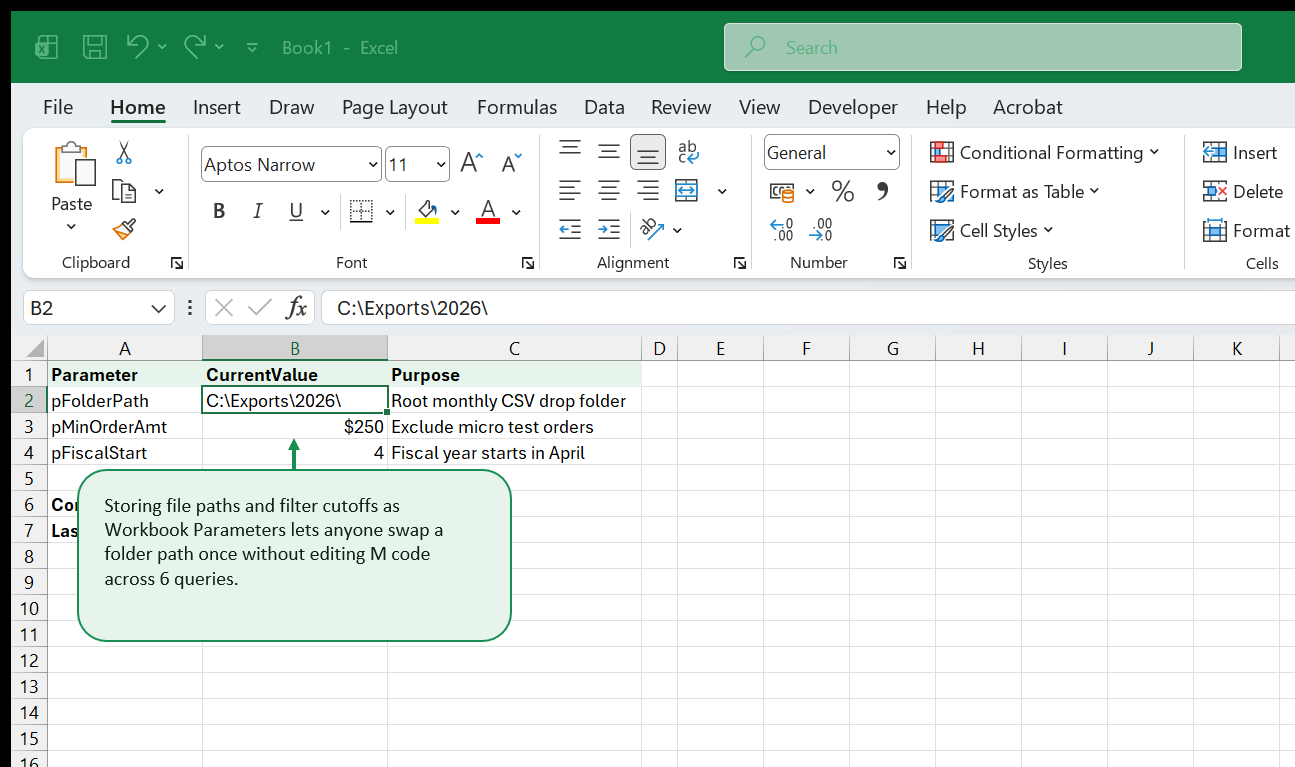
Goal: Decouple hard-coded C:\Users\... folder paths and numeric cutoff filters from your M scripts so any teammate can refresh safely.
Nothing breaks a shared Power Query workbook faster than baking C:\Users\Amara\Downloads\march_sales.csv deep inside Step 1 (Source). When Ben downloads the workbook to his laptop, clicking Refresh throws DataSource.Error: Could not find file.
Two Ways to Wire Parameters Cleanly
- Inside Power Query Editor (
Manage Parameters → New Parameter): DefinepFolderPath(Text) andpMinOrderAmt(Decimal Number), then wire Source → File Path → Parameter or filter conditions directly to those parameters. - Even friendlier for teammates (
Named Rangeon ExcelSetuptab): Put the path cell in a named cellpFolderPath, load it into Power Query (From Table/Range), right-click the single value → Drill Down, convert the query to Connection Only, and referencepFolderPathdirectly insideFolder.Files(pFolderPath). Teammates paste their own folder link onto theSetuptab and click Refresh All!
8. Combining an Entire Folder of Monthly CSVs Safely
Goal: Configure From Folder pipelines once so dropping April, May, and June exports into one directory flows straight into Excel automatically.
Appending two static files (Online + POS) gets old fast when twelve monthly CSV exports arrive over a year. Choose Data → Get Data → From File → From Folder, point to pFolderPath, and click Combine & Transform Data:
- Power Query automatically generates a Transform Sample File helper query. Put every column cleanup step inside
Transform Sample File(removing footer disclaimer rows, fixing headers, trimming text) so every new file gets cleaned before stacking! - Filter the folder metadata (
[Extension] = ".csv"andnot Text.StartsWith([Name], "~$")) right at step 2 so hidden temporary Excel lock files (~$Book.xlsx) or stray PDFs dropped in that folder never crash your refresh!
9. Load Destinations: Table vs. Connection Only vs. Data Model
Goal: Avoid bloating Excel files with unnecessary 500,000-row worksheet dumps by mastering Connection Only and Data Model loads.
Loading every intermediate staging query onto its own worksheet tab triples file size and confuses readers. Before clicking Close & Load, pause and open Close & Load To… instead:
- Table: Only use when users actually read rows directly or write downstream worksheet formulas.
- Only Create Connection: Ideal for lookup/helper queries (such as
pFolderPath, raw staging imports, and individual un-appended channel tables). Runs cleanly in memory on demand with zero worksheet tabs! - Only Create Connection + Add this data to the Data Model: The pro analyst sweet spot. Loads compressed analytical tables straight into Power Pivot for multi-million-row PivotTables without cluttering workbook tabs!
10. Query Dependencies, Staging Architecture & Modular Design
Goal: Organize multi-query workbooks with folders and staging layers so broken upstream exports can be diagnosed in thirty seconds.
When a workbook crosses six or seven queries, open View → Query Dependencies inside the Editor. You’ll see a visual graph tracing CSV/folder inputs through staging transforms into final merged outputs.
Clean Folder Taxonomy Inside Queries & Connections
Right-click the left Queries pane inside Power Query Editor to create organized groups:
01 Staging (Parameters & Raw Loads)— Connection Only02 Dimensions—DimDate, cleanedDimProduct,DimCustomer03 Facts & Final Outputs—FactOrders,FactBudget(loaded to Sheet or Data Model)
Separating 01 Staging from 03 Facts lets you inspect raw imported data independently whenever an accounting export silently renames a column header.
11. Reading & Guarding M Code Against Schema Drift
Goal: Understand the clean let ... in structure of M code and fix fragile hard-coded column lists when upstream exports change columns.
Enable View → Formula Bar inside Power Query Editor right away so you see the exact M expression written behind every button click. Every query follows one simple blueprint:
let
    Source = Csv.Document(...),
    PromotedHeaders = Table.PromoteHeaders(Source),
    RemovedJunk = Table.SelectColumns(PromotedHeaders, {"OrderID", "SKU", "Qty"})
in
    RemovedJunk
Notice step Table.SelectColumns(..., {"OrderID", "SKU", "Qty"}): choosing Choose Columns explicitly keeps ONLY known safe columns regardless of extra junk columns vendors append later! Conversely, using MissingField.Ignore inside Table.RemoveColumns(tbl, {"LegacyCol"}, MissingField.Ignore) stops a query from crashing if an optional column vanishes next quarter.
12. Performance, Query Folding & Next Steps
Goal: Keep refreshes fast across tens of thousands of rows and bridge cleanly into Power Pivot modeling and Excel data hygiene.
Whenever connecting to relational databases (SQL Server, PostgreSQL, Access), push filters, joins, and Group By steps early in Applied Steps so Power Query translates them into server-side SQL (Query Folding). On CSV/Excel sources where folding doesn’t apply, filter unnecessary rows and Choose Columns right after PromotedHeaders so downstream Merge and Sort steps chew over a compact table instead of 40 wide unused text fields.
Practice & Related Guides on ExcelBack
- Practice cleanup datasets: Download messy multi-export practice files from ExcelBack Datasets or scrub quick one-off lists in the CSV Cleaner Tool.
- Advance into Star Schemas & DAX: Continue straight into Power Pivot & DAX Field Guide to feed
DimDateandFactOrdersinto rich multi-table measures. - Review Pivot visuals & layouts: Pair clean query tables with Pivot Tables & Data Models (Volume 2) and explore deeper articles in the Power Query Hub.
13. Incremental Refresh Concepts & Staging Query Layers
Goal: Structure multi-layer staging queries (Stg_Raw, Stg_Clean, Fact_Sales) so heavy enterprise transforms refresh cleanly without duplicating transformations across tabs.
As workbooks grow beyond two or three queries, connecting final reporting sheets straight to one 40-step monster query turns every edit into a debugging maze. Senior Power Query architects split ETL work cleanly into three staging folders inside the Queries & Connections pane:
01_Parameters&02_Connections(Connection Only): Raw file paths, folder connectors, CSV ingests, and API endpoints—never loaded directly to worksheet grids.03_Staging(Connection Only): Cleaned type definitions, standardized keys (TRIM/UPPER), unpivoted tall tables, and deduplicated lookup masters.04_Outputs(Loaded to TableorData Model): Final presentation merges, grouped summaries, and Pivot-ready fact tables.
Because downstream queries reference clean staging connections seamlessly, changing a folder path or header rename in one parameter updates five downstream reports without repeating a single click.
14. Dynamic Date Dimension Generation in Pure M Code
Goal: Build a self-updating 1,095-day calendar table inside Power Query using #date and List.Dates—eliminating fragile copy-pasted date helper sheets forever.
Every multi-year sales merge eventually needs continuous daily calendar rows (Date, Year, Quarter, MonthName, MonthNum, WeekStart, IsWeekday)—even for dates with zero transactions. Generate a pure M calendar cleanly inside a Blank Query:
let
    StartDate = #date(2024, 1, 1),
    DayCount  = Duration.Days(DateTime.Date(DateTime.LocalNow()) - StartDate) + 365,
    DateList  = List.Dates(StartDate, DayCount, #duration(1, 0, 0, 0)),
    ToTable   = Table.FromList(DateList, Splitter.SplitByNothing(), {"Date"}),
    Typed     = Table.TransformColumnTypes(ToTable, {{"Date", type date}}),
    WithYear  = Table.AddColumn(Typed, "Year", each Date.Year([Date]), Int64.Type),
    WithMonth = Table.AddColumn(WithYear, "MonthNum", each Date.Month([Date]), Int64.Type),
    WithName  = Table.AddColumn(WithMonth, "MonthName", each Date.ToText([Date], "MMM"), type text)
in
    WithName
Unlike static Excel date tables that stop silently at 2026-12-31, DateTime.LocalNow() extends your reporting calendar automatically every time the workbook refreshes in a new fiscal year.
15. Parameterized Workbook Queries & File Path Portability
Goal: Replace hardcoded C:\Users\Jules\Desktop\Exports\... file paths with dynamic named-cell Excel parameters so teammates can run refreshes cleanly on any laptop.
Hardcoding personal C:\Users\... folder paths is the top reason Power Query workbooks crash on a colleague’s computer (DataSource.Error: Could not find file). Fix path brittleness once using a Config Cell + Query Function:
- Create a tiny
Configtab containingFolderPath(D:\SharedFinance\MonthlyDrops\) named cleanly asprmFolderPath(or extract the active workbook folder automatically via=LEFT(CELL("filename", A1), FIND("[", CELL("filename", A1)) - 1)!). - Build a
fnGetParamhelper query readingExcel.CurrentWorkbook(){[Name="prmFolderPath"]}[Content]{0}[Column1]. - Swap the hardcoded path string inside
Folder.Files(...)cleanly forFolder.Files(fnGetParam).
Any analyst who clones the folder or moves SharePoint synced paths refreshes every query identically in zero clicks.
16. Advanced Error Handling with Try / Otherwise in M
Goal: Inspect malformed vendor cells gracefully inside M transformations (try ... otherwise) instead of letting one bad date string crash an entire 80,000-row refresh.
When a vendor slips "N/A", "TBD", or "31/02/2026" into a numeric or date column, brute-force Change Type generates cell-level Error tokens that blow up downstream SUM aggregations or fail Data Model loads cleanly.
Use an explicit custom column with M’s try ... otherwise construct to quarantine broken lines visibly instead of dropping rows blindly:
try Date.FromText([ShipDateRaw], "en-US") otherwise nullEven stronger: add an AuditFlag column testing if (try Number.From([RawQty]))[HasError] then "Bad Quantity" else "OK" and load a separate Quarantine_Exceptions exception table alongside your clean fact load. Procurement analysts receive a crystal-clear fix list without blocking month-end financial reporting.
17. Fuzzy Matching & Near-Duplicate Vendor Cleanup
Goal: Reconcile messy vendor strings ("Northside Supply Co.", "NORTHSIDE SUPPLY INC", "Northside Tool & Supply") against clean master directories automatically using Power Query Merge Fuzzy Matching.
Accounting exports rarely carry clean numeric Vendor IDs on manual credit-card receipts. Inside Home -> Merge Queries -> Use fuzzy matching to perform the merge, configure three high-impact options under Fuzzy matching options:
| Setting | Recommended Value | Practical Impact |
|---|---|---|
| Similarity threshold | 0.78 to 0.85 |
Strict enough to block unrelated short names, loose enough for Co. vs Inc. |
| Ignore case & spaces | Checked (true) |
Normalizes "ACME CORP" vs "Acme Corp" automatically |
| Transformation table | Clean 2-col From/To Table |
Maps known abbreviations ("St." -> "Street", "Intl" -> "International") cleanly |
| Maximum number of matches | 1 |
Keeps one best vendor match per receipt line without duplicating spend! |
Always inspect the diagnostic Similarity Score or matched preview right inside your staging check before approving fuzzy joins on financial ledgers.
18. Combining Multi-Tab Excel Workbooks Without Sheet-Name Fragility
Goal: Consolidate 12 regional budget tabs or monthly workbooks cleanly when sheet names vary slightly (Jan_2026, January, Sheet1), eliminating broken Combine Files wizard errors.
The built-in Folder -> Combine Files helper locks onto the exact worksheet tab name seen inside the Sample File ([Item="Jan",Kind="Sheet"]). The month someone saves a tab as "Feb_v2", refresh fails completely!
For durable folder consolidation:
- Connect via Data -> From Folder (
Folder.Files), filter[Extension] = ".xlsx"and exclude temporary lock files (not Text.StartsWith([Name], "~$")). - Add one Custom Column reading
Excel.Workbook([Content], true). - Expand
[Kind],[Item],[Data]-> filter[Kind] = "Sheet"(or better[Kind] = "Table", ignoring loose scratch tabs!) -> remove the hard"Jan"item name filter completely -> expand[Data]columns uniformly.
This single three-step pattern ingests variable tab names effortlessly month after month without broken sample-file bindings.
19. Enterprise Query Optimization & Pre-Publish Audit Checklist
Goal: Guarantee crisp refresh speeds under 5 seconds on large joins and hand off cleanly documented Power Query pipelines any teammate can audit.
| Performance Bottleneck | High-Speed Optimization |
|---|---|
| Folding stops mid-query on SQL/ODBC | Keep Filters, Select Columns, and Group By at the very top before custom M text splits |
Slow row-by-row lookups (Table.Join unsorted) |
Call Table.Buffer(LookupTable) right before small-to-large nested lookup merges |
| Unbounded CSV/JSON file reloads | Load staging tables with Fast Data Load vs Background Preview disabled (Query Options -> Data Load -> Allow data preview to download in the background = OFF during batch runs) |
| Duplicate query chains refreshing source twice | Enable Fast Combine cleanly inside Workbook Privacy settings when merging internal verified tabs |
Before releasing any Volume 2 pipeline into production, document every query step’s Applied Steps Properties -> Description, verify zero Error counts in Column Quality, test Refresh All (Ctrl + Alt + F5) cleanly from a clean folder copy, and confirm total row counts reconcile against raw ERP control totals to the exact row.
20. Hands-On Practice Lab: Monthly Multi-File Cleaning Sprint
Goal: Combine folder ingestion, column profiling, Unpivot Other Columns, type repair (Using Locale), and left-anti exception auditing cleanly on a simulated month-end pack.
Open a fresh blank workbook and run this timed 15-minute lab to cement every Volume 2 technique in muscle memory:
- Ingest Folder Pack: Drop three monthly sales exports (
Sales_Jan.csv,Sales_Feb.csv,Sales_Mar.csv) into one folder, connect via Data -> From Folder, filter.csv, and strip redundant header lines using Remove Top Rows cleanly inside the transform sample. - Normalize Mixed Currencies (
Using Locale): Right-click European dot/comma unit price columns ("1.250,00") -> Change Type -> Using Locale… -> English (United States) vs German (Germany) so text parses directly into true Currency floats with zero#VALUE!downstream errors. - Unpivot Calendar Grid: Select static SKU and Warehouse ID columns -> Transform -> Unpivot Other Columns -> rename
AttributetoMonthNameandValuetoNetRevenue. - Exception Audit (Left Anti Merge): Merge clean monthly transactions against
tblApprovedSKUsusing Left Anti join kind (Rows matching nowhere in ApprovedSKUs), loading unresolved typos (SKU-998) straight onto anExceptionssheet for team review!
21. Power Query M Function & UI Shortcut Quick Reference
Goal: Keep Volume 2’s highest-leverage UI triggers, M expressions, and debugging shortcuts on one desk card for daily query engineering.
| Workflow Task | UI Path / Keyboard Shortcut | Underlying Power Query M Function |
|---|---|---|
| Open Power Query Editor | Alt + A + P + N or Queries & Connections double-click |
let ... in ... |
| Group Revenue & Count Rows | Transform -> Group By | Table.Group(Source, {"Region"}, {{"Rev", each List.Sum([Revenue])}}) |
| Collapse Jan–Dec columns | Transform -> Unpivot Other Columns | Table.UnpivotOtherColumns(Source, {"SKU"}, "Month", "Amount") |
| Clean multi-space & non-print | Transform -> Format -> Trim & Clean | Text.Trim(Text.Clean([TextCol])) |
| Lookup Join Without Duplication | Home -> Merge Queries (Left Outer) |
Table.NestedJoin(...) + Table.ExpandTableColumn(...) |
| Null-Safe Error Shield | Add Column -> Custom Column | try Number.From([Raw]) otherwise 0 |
| Refresh Query Cache Manually | Ctrl + Alt + F5 (Data -> Refresh All) |
Forces sequential dependency refresh across staging & Data Model |
When you design layered 01_Connections -> 02_Staging -> 03_Output queries cleanly, parameterize file paths via fnGetParam, and isolate missing keys via Left Anti joins, Excel turns messy multi-department reporting into a dependable one-click morning routine.
That's the whole book. Keep the PDF for offline reading.
Downloading requires a free Google sign-in -- reading online never does.